
On This Page
Prime Cartesian Chart
What it is
Prime Cartesian Chart draws line, area, column, bar, and combo charts from a table of categories and one or more series of values. It's the general-purpose chart in Prime Charts — if you have a table of numbers you want plotted against a shared axis (months, products, regions, anything with a label and one or more values per label), this is the module for it. It can draw up to six series at once, either from data you type or paste directly, or from a REST/JSON endpoint you point it at.
When to use it
Use it for anything that's naturally “one row per category, one or more numbers per row” — monthly revenue, weekly signups, a comparison across a handful of series. If you only have a single number (a total, a KPI, a percentage) rather than a table, Prime Stat Value is a better fit.
Data you need
One category column, then one column per series:
| Month | Revenue | Costs |
|---|---|---|
| Jan | 1000 | 400 |
| Feb | 1500 | 450 |
| Mar | 1200 | 420 |
Prime Charts renders the first 500 rows and the first 6 series of whatever you give it — this applies no matter which of the three input methods below you use.
Adding data
The Data Source field (in the Data Source group) switches between Static and REST/JSON URL. Switching modes never deletes what you've typed or configured in the other mode — it's still there if you switch back.
Static table
Paste or type your table into Chart Data (in the Data group), a plain text box. Rows are separated by lines; columns can be separated by commas or tabs — tabs let you paste straight out of a spreadsheet. Turn on First Row Is Header if your first row names the series rather than holding data for the first category.
CSV import (canvas control)
With Data Source set to Static, an Import CSV… button appears directly above the chart in the builder (not in the Content tab's field list — it's part of the live preview area). Choosing a .csv file (2 MB max) reads it in your browser only — nothing is uploaded anywhere — and writes its contents straight into Chart Data, exactly as if you'd pasted it by hand. The existing row/series limits and the First Row Is Header toggle both still apply; the toggle itself is left as you had it, since importing a file doesn't know whether your CSV has a header row.
REST/JSON
With Data Source set to REST/JSON URL, a different set of fields appears — Endpoint URL, Category/Label Path, Value Path, Series Name, and Refresh (minutes) — plus five more numbered pairs, Value Path 2 / Series Name 2 through Value Path 6 / Series Name 6, for additional series. That's six series total from REST/JSON — the current built-in maximum, not a placeholder for more later. Category/Label Path and each Value Path use dot-and-bracket notation into your endpoint's JSON, e.g. data[].date and data[].total — the [] marks the list to walk. Series Name is optional; leave it blank for a generic “Series 1” style label.
Settings that change the result
Chart group — Chart Type offers Line, Area, Column, Bar, and Combo. Combo splits your series between bars and lines: a separate Combo: Series As Lines field appears only when Chart Type is Combo, taking a comma-separated list of series numbers (1 = first series) to draw as lines — e.g. 2 draws just the second series as a line, everything else as bars. Stacked stacks the series on top of each other and is available for every chart type, not only bar/column — it visibly changes a line chart's fill too, not just bar charts, so it's worth toggling on and off to see the effect before assuming it only matters for bars. Show Export Toolbar (off by default) adds a small download button above the chart.
Values group — Show Value Labels, Decimal Places, Value Prefix, Value Suffix control how the numbers themselves are formatted, both on the chart and (where applicable) on hover.
Series Colours, Line & Fill, Grid, Chart Animation groups (Design tab) — per-series colour pickers (up to 4 named swatches; a 5th or 6th series falls back to a default palette), stroke width, line curve (Smooth / Straight / Stepline), area fill opacity, point markers, grid line visibility, and the load animation and its speed.
Legend, Axis, Header groups — legend on/off and position (Top / Right / Bottom / Left), axis titles and an optional fixed Value Axis Minimum/Maximum, and the chart's own Title/Subtitle text — each with a full typography group in the Design tab (Title Text, Subtitle Text, Legend Text, Axis Labels Text).
Front-end extras
- Accessible data table. Every rendered chart carries a visually-hidden table with the same categories and values, so a screen reader user gets the real numbers, not just a canvas.
- Export toolbar, when turned on, adds a download button to the rendered chart.
Common mistakes
- Assuming Stacked only affects bar/column charts. It changes line and area rendering too — check both states before deciding it doesn't apply.
- Typing a plain word into Combo: Series As Lines instead of a series number. It expects numbers (1, 2, 3…), not series names.
- Expecting more than 6 series from REST/JSON. That's the built-in ceiling; Static mode can hold more columns, but the chart still only draws the first 6.
- Worrying that switching Data Source deletes the other mode's data. It doesn't — Static and REST/JSON keep their own settings independently.
- Forgetting First Row Is Header when pasting a table (or a CSV) whose first row is column names, not data — the header row gets plotted as if it were a real category otherwise.
Figures
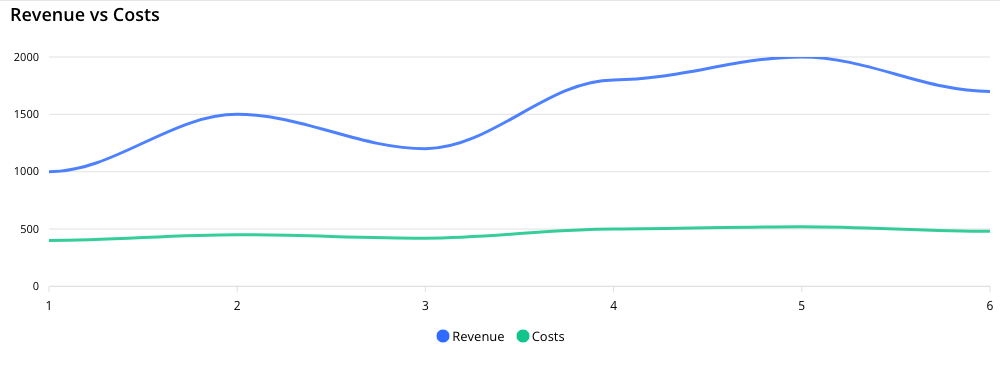
Front-end render, 2-series line chart.
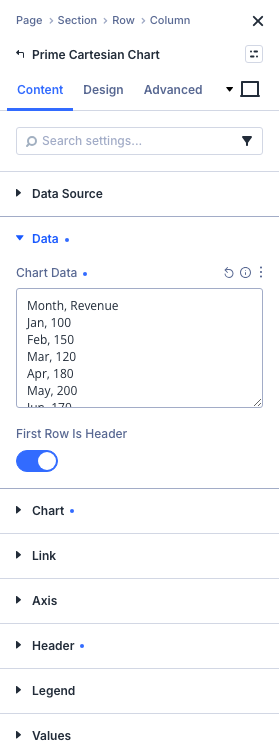
Content tab: Data Source group, Static mode with Chart Data filled in.
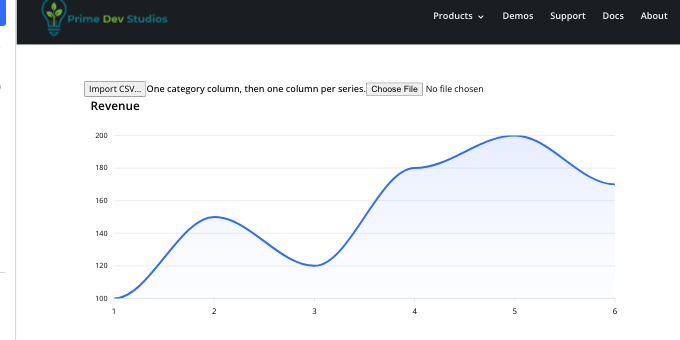
Builder canvas: the Import CSV… button above the chart.
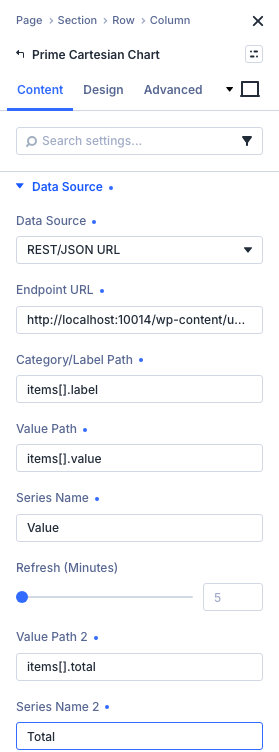
Content tab: Data Source group, REST/JSON mode with a 2-series example.
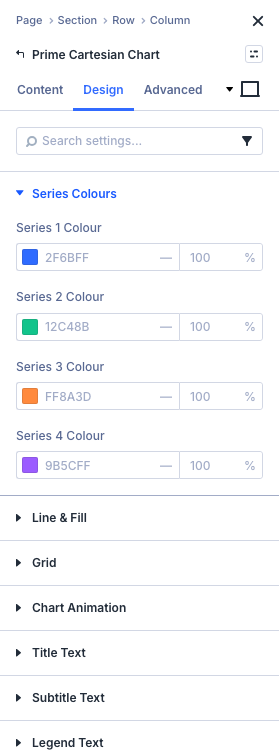
Design tab: Series Colours group.
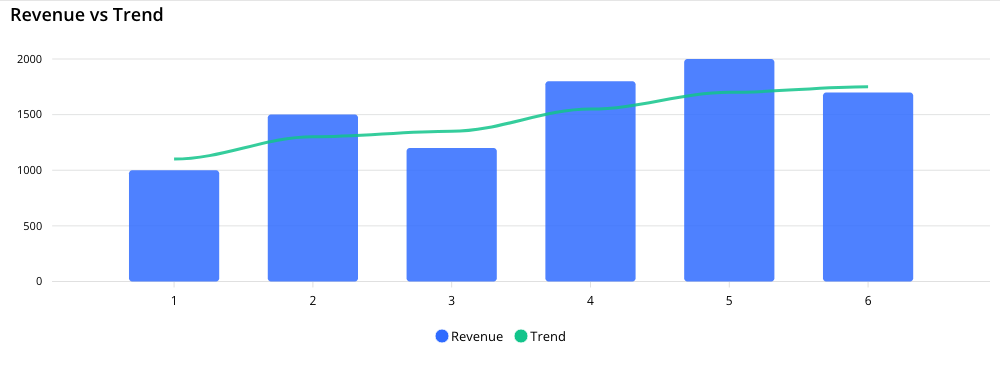
Front-end render, Combo chart with one line series and one bar series.
Get Prime Charts
One plugin for Divi 5. Seven ways to chart your data.
- Requires Divi 5.6.2+, WordPress 6.0+, PHP 7.4+
- Translation-ready · GPL-2.0-or-later