
On This Page
Prime Stat Value
What it is
Prime Stat Value is a KPI tile: one number, optionally with a trend row underneath showing how it changed against a previous value. There's no chart engine involved — no ApexCharts, no canvas — just styled text, which also means the trend is fully readable to screen readers without any extra accessibility work. Turn Show Trend off and it's just the number; turn it on and a delta row (an arrow, an amount, a percentage, or both) appears below it.
When to use it
Use it for a single headline figure — revenue this month, total signups, an uptime percentage — especially when you want to show whether that number is up or down against a previous period. If you actually have a table of values across categories, Prime Cartesian Chart is the right module instead.
Data you need
Just a value, and — only if Show Trend is on — a previous value to compare it against:
| Current | Previous (only if Show Trend is on) |
|---|---|
| 1500 | 1200 |
Adding data
Show Trend (in the Trend group) decides whether a Previous Value is needed at all — off, the module only ever asks for one number. Data Source (in the Data Source group) then decides where that number (or pair) comes from. Switching between Static and REST/JSON doesn't delete whichever one you're not currently using.
Static table
With Data Source set to Static, type the number straight into Value (in the Value group). If Show Trend is on, a second field, Previous Value, appears for the comparison number.
CSV import (canvas control)
With Data Source set to Static, an Import CSV… button appears directly above the tile in the builder (not in the Content tab's field list). Reading a .csv file (2 MB max) happens entirely in your browser — nothing is uploaded — and the first numeric value found in the file is written into Value. It never touches Previous Value: there's no reliable way to guess which cell in an arbitrary CSV represents “the previous period,” so if you're using Show Trend with CSV-imported data, set Previous Value by hand.
REST/JSON
With Data Source set to REST/JSON URL, Endpoint URL, Value Path, and Refresh (minutes) appear instead. Value Path uses dot notation into your endpoint's JSON, e.g. data.total. If Show Trend is also on, a Previous Value Path field appears too, for the comparison value's own location in the same response.
Settings that change the result
Trend group — Show Trend is the master switch described above.
Values group — Decimal Places, Value Prefix, Value Suffix format the headline number. Delta Display (Absolute / Percent Change / Both) only matters when Show Trend is on, and controls whether the trend row shows a plain difference, a percentage, or both together (e.g. +300 (+25%)).
Value Text, Delta, Chart Animation groups (Design tab) — the headline number's colour/size/weight; for the trend row, separate colours for an increase, a decrease, and no change, whether to Show Arrow (▲ / ▼) at all, and its size; and whether the number counts up on load, plus that animation's speed.
Header, Title Text, Subtitle Text — an optional title/subtitle above the number, with its own typography controls.
Front-end extras
No export toolbar — there's no chart to export. The number, title, subtitle, and trend row are all real, visible text in the page (not drawn on a canvas or exposed only through an aria-label), so a screen reader already reads the actual content without any extra markup needed.
Common mistakes
- Setting a Previous Value of 0 with Show Trend on. The percentage side of the trend has nothing to divide by and shows “—” instead of a number — expected, not a bug, but worth knowing before assuming something broke.
- Expecting CSV import to fill in Previous Value. It only ever writes Value — see CSV import above for why.
- Turning on Show Trend without setting Previous Value/Previous Value Path. The trend row still renders, comparing against 0.
- Assuming the tile needs styling to be accessible. It doesn't — the visible text already carries the same information a screen reader gets.
Figures

Front-end tile, Show Trend on, an increase.

Front-end tile, Show Trend off.
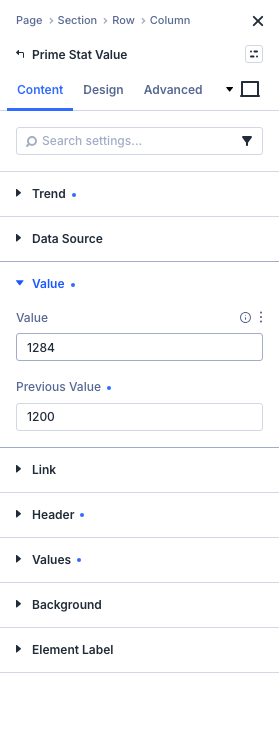
Content tab: Trend group with Show Trend on, revealing Previous Value (note: Previous Value actually lives in, and is conditionally revealed inside, the Value group — “Trend” holds only the Show Trend toggle itself; the screenshot still shows the described state).
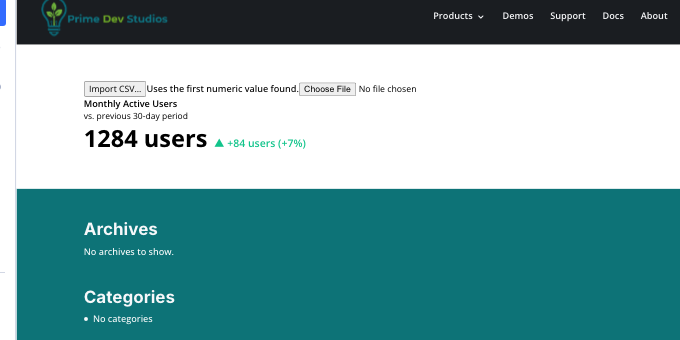
Builder canvas: the Import CSV… button above the tile.
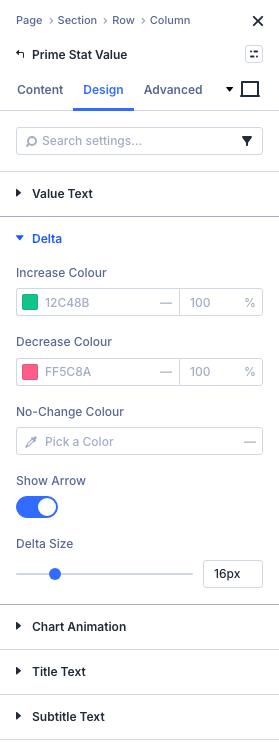
Design tab: Delta group (increase/decrease/no-change colours, arrow toggle).
Get Prime Charts
One plugin for Divi 5. Seven ways to chart your data.
- Requires Divi 5.6.2+, WordPress 6.0+, PHP 7.4+
- Translation-ready · GPL-2.0-or-later