
On This Page
Prime Circular Chart
What it is
Prime Circular Chart draws pie, donut, polar area, and radar charts from a table of categories and one or more series of values. Like Prime Cartesian Chart, it's built around a shared category-plus-series table — the difference is entirely in how that table gets drawn: as wedges (pie/donut), overlapping polar segments, or a radar's spokes, rather than along a shared axis. It can draw up to six series at once, from data you type or paste, a CSV file, or a REST/JSON endpoint.
When to use it
Use it for part-to-whole comparisons (pie, donut) or for comparing a handful of values across shared categories (polar area, radar) where an axis-based chart isn't the natural fit. If your data is really a time series or a category-by-category comparison along one axis, Prime Cartesian Chart is usually the better read.
Data you need
One category column, then one column per series — the same shape as Cartesian:
| Segment | Share |
|---|---|
| Direct | 42 |
| Referral | 30 |
| Search | 28 |
Prime Charts renders the first 500 rows and the first 6 series of whatever you give it, whichever of the three input methods below you use.
Adding data
The Data Source field (Data Source group) switches between Static and REST/JSON URL. Switching modes never deletes what's in the other mode.
Static table
Paste or type your table into Chart Data (Data group). Rows are lines; columns can be comma- or tab-separated. Turn on First Row Is Header if your first row names the series rather than holding data.
CSV import (canvas control)
With Data Source set to Static, an Import CSV… button appears directly above the chart in the builder canvas — not in the Content tab's field list. Choosing a .csv file (2 MB max) is read in your browser only, and its contents are written straight into Chart Data, exactly as if pasted by hand. First Row Is Header is left as you had it.
REST/JSON
With Data Source set to REST/JSON URL, Endpoint URL, Category/Label Path, Value Path, Series Name, and Refresh (minutes) appear, plus five more numbered pairs (Value Path 2 / Series Name 2 through Value Path 6 / Series Name 6) for additional series — six series total, the current built-in maximum. Category/Label Path and each Value Path use dot-and-bracket notation, e.g. data[].label and data[].share.
Settings that change the result
Chart group — Chart Type offers Pie, Donut, Polar Area, and Radar. Show Export Toolbar (off by default) adds a download button.
Values group — Show Value Labels, Value Display (Value / Percentage / Both — Percentage shows each segment's share of the total), Decimal Places, Value Prefix, Value Suffix.
Slice Colours, Slice Border, Chart Animation groups (Design tab) — up to 6 named colour swatches, the border width and colour drawn around each slice/segment, and the load animation and its speed.
Legend, Title Text, Subtitle Text groups — legend on/off and position (Top / Right / Bottom / Left), and the chart's own Title/Subtitle with full typography controls.
Settings that apply only to some types
Donut Hole Size (Chart group) only appears, and only matters, when Chart Type is set to Donut — it has no effect on Pie, Polar Area, or Radar, and Divi hides it automatically outside Donut.
Front-end extras
- Accessible data table. Every rendered chart carries a visually-hidden table with the same categories and values.
- Export toolbar, when turned on, adds a download button.
Common mistakes
- Looking for Donut Hole Size outside Donut mode. It only appears when Chart Type is Donut — switch types to see it.
- Expecting more than 6 series from REST/JSON. Static mode can hold more columns; the chart still only draws the first 6.
- Assuming Value Display's Percentage option changes the stored numbers. It only changes how values are labelled/read back — the underlying data is untouched.
- Forgetting First Row Is Header on a pasted or imported table whose first row is column names — it otherwise plots as a real segment.
Figures
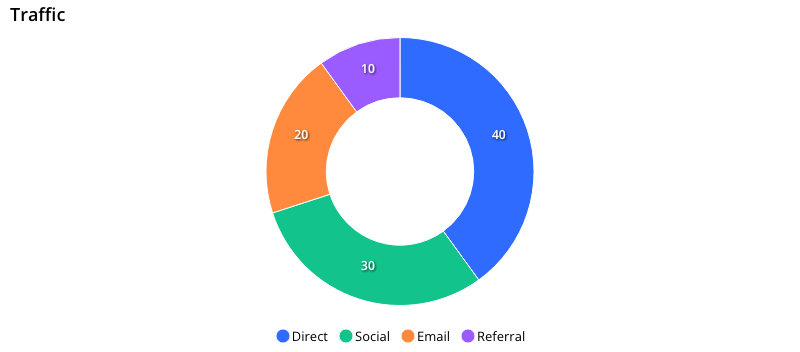
Front-end render, donut chart with 4 segments.

Front-end render, donut with the hole visibly resized.
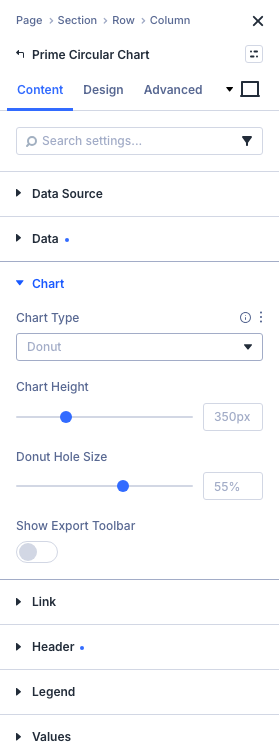
Content tab: Chart group with Chart Type set to Donut, Donut Hole Size visible.
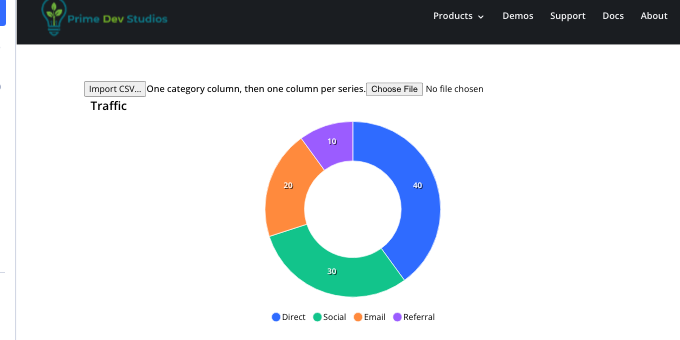
Builder canvas: the Import CSV… button above the chart.
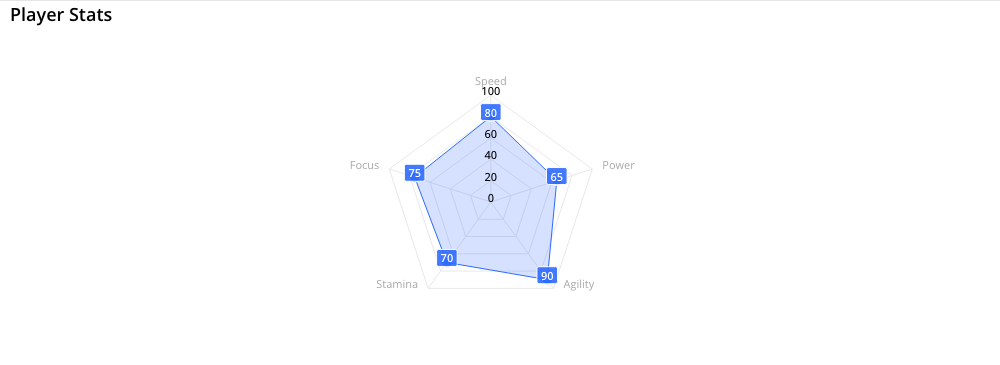
Front-end render, radar chart.
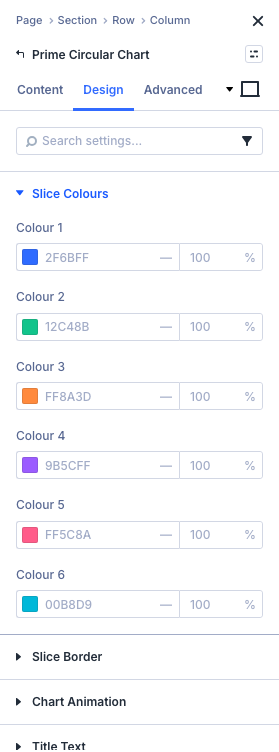
Design tab: Slice Colours group.
Get Prime Charts
One plugin for Divi 5. Seven ways to chart your data.
- Requires Divi 5.6.2+, WordPress 6.0+, PHP 7.4+
- Translation-ready · GPL-2.0-or-later