
On This Page
Prime Gauge Chart
What it is
Prime Gauge Chart draws a single value as a ring against a Minimum and Maximum — a dial, not a table of categories. There's one number in, one number out: no series, no categories, no multiple rings. It's the module to reach for when you have one figure that only makes sense read against a range, like a score, a completion level, or a percentage-style metric.
When to use it
Use it for one figure read against a fixed range — a score out of 100, a level against a target band. If you need more than one ring, or the value isn't naturally bounded by a Min/Max, Prime Radial Chart or Prime Stat Value fit better.
Data you need
Just a value, plus the range you want it read against:
| Field | Example |
|---|---|
| Value | 72 |
| Minimum Value | 0 |
| Maximum Value | 100 |
Adding data
Data Source (Data Source group) switches between Static and REST/JSON URL for the value itself. Minimum Value and Maximum Value (Scale group) are set independently of Data Source, in both modes — they're not part of what CSV or REST populate.
Static table
With Data Source set to Static, type the number into Value (Value group).
CSV import (canvas control)
With Data Source set to Static, an Import CSV… button appears directly above the gauge in the builder canvas — not in the Content tab's field list. Reading a .csv file (2 MB max) happens entirely in your browser, and the first numeric value found is written into Value only. Minimum Value and Maximum Value are never touched by CSV import — there's no reliable way to tell which cell in an arbitrary file represents a range boundary, so set those by hand.
REST/JSON
With Data Source set to REST/JSON URL, Endpoint URL, Value Path, and Refresh (minutes) appear instead. Value Path uses dot notation, e.g. data.score.
Settings that change the result
Chart group — Hollow Size controls how thick the ring is (a larger hollow makes a thinner ring). Show Export Toolbar (off by default) adds a download button.
Scale group — Minimum Value and Maximum Value set the range the ring (and any Percentage display) is read against.
Values group — Show Value, Value Display (Value / Percentage / Both — Percentage expresses the value as its position between Minimum and Maximum), Decimal Places, Value Prefix, Value Suffix.
Ring Colour, Ring Style, Chart Animation, Value Text groups (Design tab) — the ring's own colour, its track colour and end-cap shape (Round / Flat / Square), the load animation and speed, and the centre value's own typography.
Front-end extras
No export toolbar unless Show Export Toolbar is turned on. The gauge's value is spoken directly: the canvas carries an accessible label combining the title (if set) and the formatted value, e.g. “Uptime: 99.9%” — a screen reader gets the actual number, not just a generic description of a chart.
Common mistakes
- Setting Minimum and Maximum equal to each other. The ring has nothing to show a position within — set a real range.
- Expecting CSV import to also set Minimum/Maximum. It only ever writes Value; the range is always set by hand.
- Reading Value Display's Percentage as “percent of 100” rather than “position between Minimum and Maximum” — with a Minimum/Maximum other than 0/100, the percentage reflects the range, not a literal 0–100 scale.
Figures

Front-end render, single gauge.
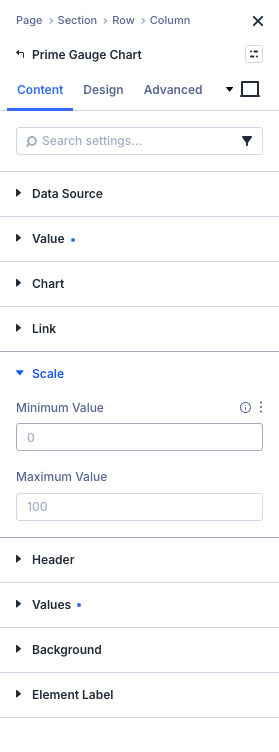
Content tab: Scale group (Minimum Value / Maximum Value).
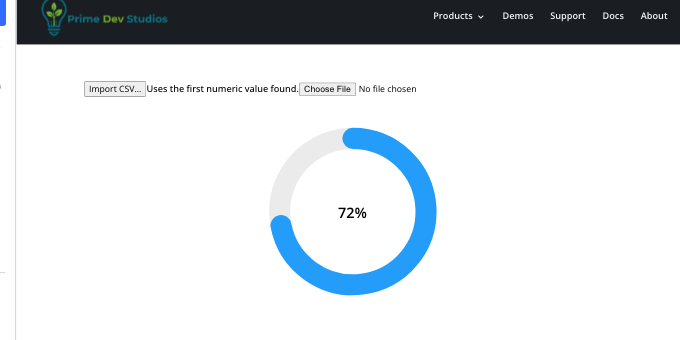
Builder canvas: the Import CSV… button above the gauge.
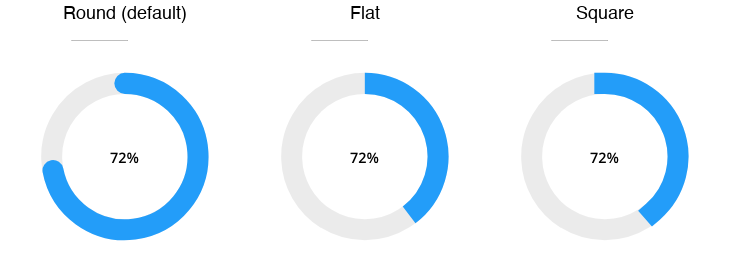
Design tab: Ring Style group (end cap options compared, composite of 3 crops).
Get Prime Charts
One plugin for Divi 5. Seven ways to chart your data.
- Requires Divi 5.6.2+, WordPress 6.0+, PHP 7.4+
- Translation-ready · GPL-2.0-or-later