
On This Page
Prime Radial Chart
What it is
Prime Radial Chart draws one concentric ring per row of data — a multi-ring gauge, rather than the single-value dial Prime Gauge Chart draws. Each ring is normalised against the same Minimum/Maximum, so several values sharing a range can be compared at a glance. With more than one ring, an automatic “Total” reading (the sum of all rings' raw values) can appear in the centre.
When to use it
Use it when you have a handful of values that share a common range and benefit from being compared as concentric rings — progress across several targets, for instance. For a single value, use Prime Gauge Chart. For a category-and-series table drawn as wedges or an axis chart, use Prime Circular Chart or Prime Cartesian Chart instead.
Data you need
One category (ring label) column, then one column per series — one row per ring:
| Team | Progress |
|---|---|
| Sales | 72 |
| Support | 58 |
Prime Charts renders the first 500 rows and the first 6 series of whatever you give it.
Adding data
Data Source (Data Source group) switches between Static and REST/JSON URL. Switching modes never deletes what's in the other mode.
Static table
Paste or type your table into Chart Data (Data group). Rows are lines; columns can be comma- or tab-separated. Turn on First Row Is Header if your first row names the series rather than holding data.
CSV import (canvas control)
With Data Source set to Static, an Import CSV… button appears directly above the chart in the builder canvas — not in the Content tab's field list. Reading a .csv file (2 MB max) happens entirely in your browser, and its contents are written straight into Chart Data, exactly as if pasted by hand. First Row Is Header is left as you had it.
REST/JSON
With Data Source set to REST/JSON URL, Endpoint URL, Category/Label Path, Value Path, Series Name, and Refresh (minutes) appear, plus five more numbered pairs for additional series — six series (rings) total, the current built-in maximum.
Settings that change the result
Chart group — Hollow Size controls the thickness of the rings. Show Export Toolbar (off by default) adds a download button.
Scale group — Minimum Value and Maximum Value set the shared range every ring is drawn against.
Values group — Show Total reveals an automatic centre reading, the sum of every ring's raw value, formatted with the same Decimal Places/Value Prefix/Value Suffix as the rings themselves — it only appears with more than one ring; a single ring has nothing to sum, so nothing shows even with Show Total on.
Ring Colours, Ring Style, Chart Animation, Value Text groups (Design tab) — up to 6 named ring colours, ring end-cap shape and track colour, the load animation and speed, and the centre value's own typography.
Legend, Title Text, Subtitle Text groups — legend on/off and position, and the chart's own Title/Subtitle.
Front-end extras
- Accessible data table. Every rendered chart carries a visually-hidden table with the same categories and values.
- Export toolbar, when turned on, adds a download button.
Common mistakes
- Expecting Show Total with only one ring. The total only ever appears once there's more than one ring to sum.
- Assuming the Total can be customised beyond a plain sum. It's always the literal sum of the rings' raw values — there's no way to show an average or a different figure there.
- Expecting more than 6 rings from REST/JSON. Static mode can hold more columns; the chart still only draws the first 6.
- Forgetting First Row Is Header on a pasted or imported table whose first row is column names.
Figures
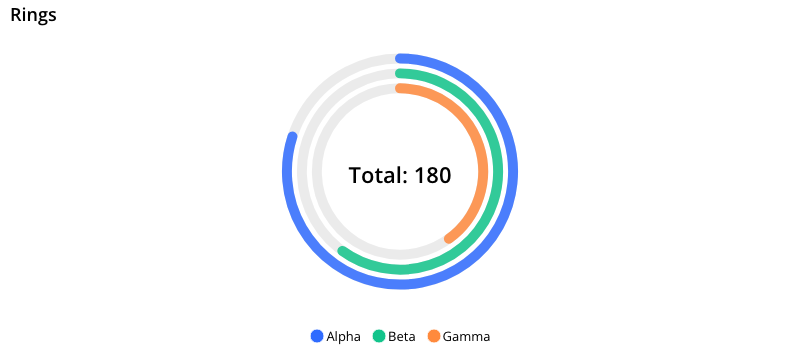
Front-end render, 3-ring radial chart with Total showing.
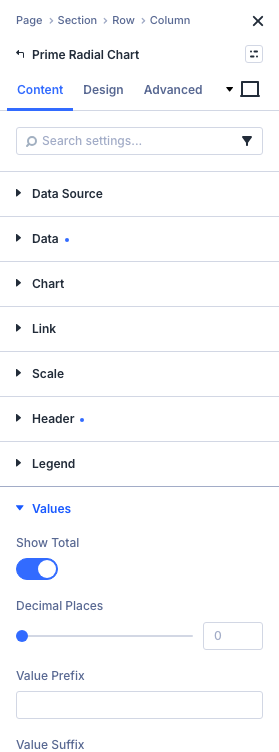
Content tab: Values group with Show Total on.
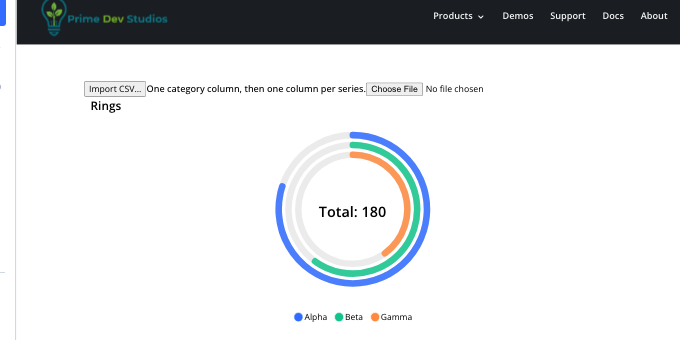
Builder canvas: the Import CSV… button above the chart.
Get Prime Charts
One plugin for Divi 5. Seven ways to chart your data.
- Requires Divi 5.6.2+, WordPress 6.0+, PHP 7.4+
- Translation-ready · GPL-2.0-or-later