
On This Page
Prime Carousel
What it is
Prime Carousel is a native Divi 5 module that shows a set of images (or videos) one slide — or one group of slides — at a time, with Slide, Fade, or Zoom transitions, optional autoplay, arrows, dots, and the same lightbox the other Prime Gallery Pro modules share. It's the sequential, one-at-a-time sibling to Prime Gallery.
When to use it
Reach for Prime Carousel when images should advance through a limited viewing area — a hero banner, a testimonial strip, a product spotlight — rather than being laid out together on the page at once.
Images it uses
Prime Carousel draws from your Media Library. See Images, categories, and lightbox for how attachments and the lightbox work — this page only covers what's specific to Prime Carousel.
Adding / selecting images
Prime Carousel is manual selection only — pick images from the Media Library with the Images field (Content tab). It does not offer the Gallery Categories / dynamic source option Prime Gallery does. Image Order controls the sequence: As Selected, Random, or Reverse.
Settings that change the result
Slides (Content tab)
Slides Visible sets how many slides show at once (1 to 6). Item Spacing sets the gap between them. Thumbnail Image Size and Image Aspect Ratio (Square, Landscape, or Portrait) apply to every slide.
Transitions (Content tab)
Transition Effect offers Slide, Fade, or Zoom, and Transition Duration sets how long a transition takes.
Autoplay is a toggle; turning it on reveals Autoplay Delay, the time between automatic advances.
Loop makes the carousel wrap from the last slide back to the first. It's hidden whenever Center Mode is on, because Center Mode always loops — there's nothing for the separate toggle to control in that state.
Center Mode and Slide Focus
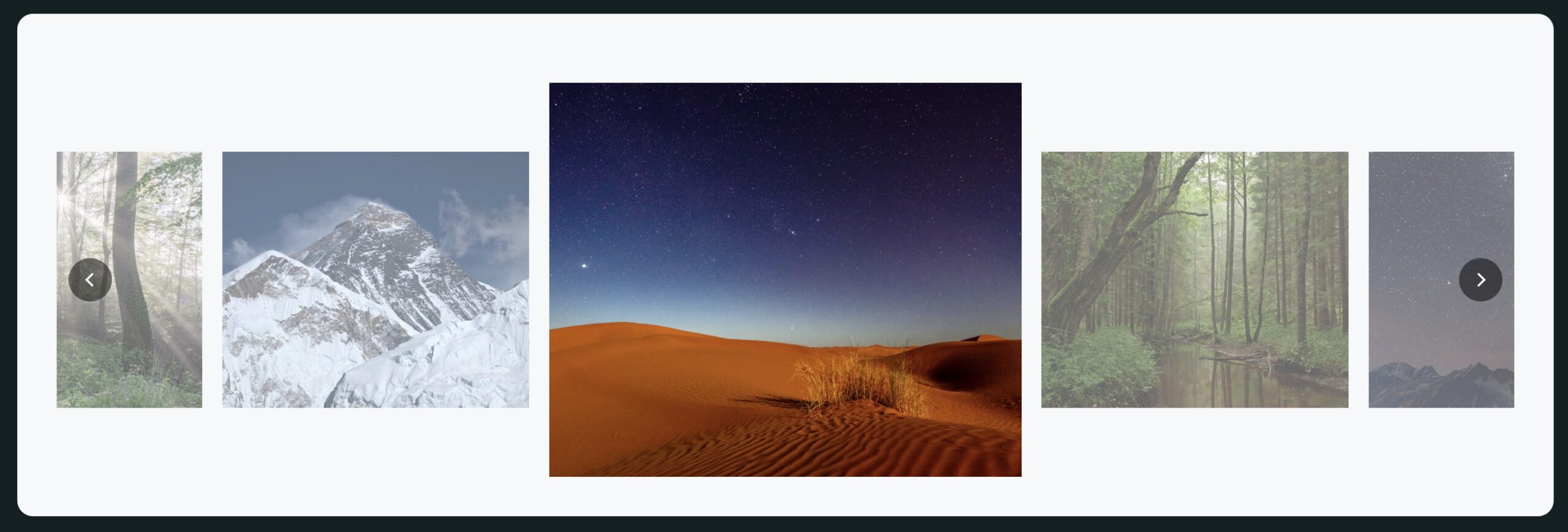
Center Mode (Content tab → Transitions) is only offered when Transition Effect is Slide — Fade and Zoom crossfade the whole viewing area and have no "centered slide" concept. When it's on, the carousel keeps one slide centered and fully visible while its neighbors sit, de-emphasized, on either side; it advances one slide at a time with a seamless loop regardless of the Loop toggle.
The neighbors' de-emphasis is controlled on the Design tab, in the Slide Focus group:
- Inactive Slide Opacity — 0 to 100.
- Inactive Slide Scale — 50 to 100.
These controls (and the group itself) only appear while Center Mode is on. With Center Mode off, the group shows a short notice instead of an empty panel:
"Styling appears here when Center Mode is turned on in the Content tab."
Slide Height
Slide Height lives on the Design tab, under Slide Size — a separate group from Slide Focus, and always visible regardless of Center Mode. Left at its default (0), each slide sizes itself from the track. Set to a pixel value, every slide takes that height. In Center Mode, that height applies to the centered slide; the neighboring slides still additionally follow Inactive Slide Scale, so a Slide Height of 240px with an Inactive Slide Scale of 59 puts the neighbors at roughly 142px tall.
Arrows and dots (Content tab → Navigation; Design tab)
Show Arrows and Show Dots are independent toggles (Content tab). Each one's Design-tab styling group — icon, color, size, and (for dots) alignment and top margin — only appears while its toggle is on; otherwise that group shows the same short "turn this on in the Content tab" notice pattern Slide Focus uses.
Overlay & Hover, Item Border, Item Box Shadow (Design tab)
These work identically to Prime Gallery's — see Prime Gallery's Settings section for the full effect list and border/shadow fields; they're the same controls on both modules.
Front-end extras
- Lightbox — see Images, categories, and lightbox. As with Prime Gallery, the Design-tab lightbox styling controls only show while Enable Lightbox is on.
- Video hover-preview and play badge — see the shared page. Applies to any slide whose image has a Video URL set.
- Swipe, and autoplay pausing on hover or keyboard focus are always on — there's no setting for either. Swiping left/right moves a slide on touch devices; resting a pointer over the carousel, or tabbing a keyboard focus into any of its controls, pauses autoplay until the pointer leaves or focus moves elsewhere, so autoplay never advances slides out from under someone reading or operating them.
Common mistakes
- Looking for Center Mode's neighbor-styling controls with Center Mode off. Turn Center Mode on first — the panel deliberately shows a notice instead of the controls until then, rather than leaving a group that does nothing visible.
- Confusing Slide Height with Inactive Slide Scale. Slide Height sets an absolute pixel height for the centered/only slide; Inactive Slide Scale is a percentage applied on top of that height for the de-emphasized neighbors in Center Mode. Setting Slide Height alone, with Center Mode off, has no scale applied to anything.
- See Images, categories, and lightbox for mistakes shared across all three modules.
Figures
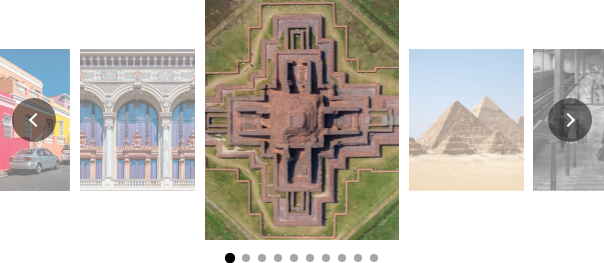
CAR-01 — the centered slide takes the full Slide Height; its neighbors are additionally scaled down by Inactive Slide Scale.
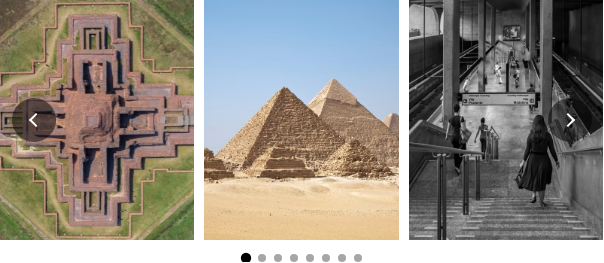
CAR-02 — direct contrast with CAR-01: same height control, no Center Mode composition.
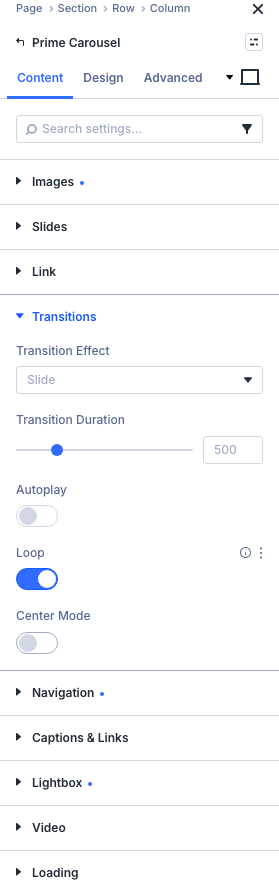
CAR-03a — Loop reappears once Center Mode is off.
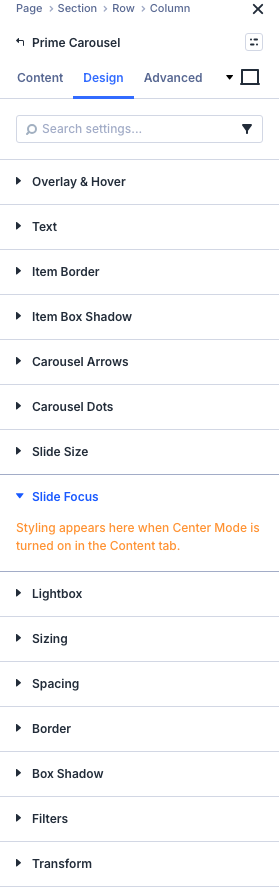
CAR-03b — the exact notice wording, captured rather than only quoted.
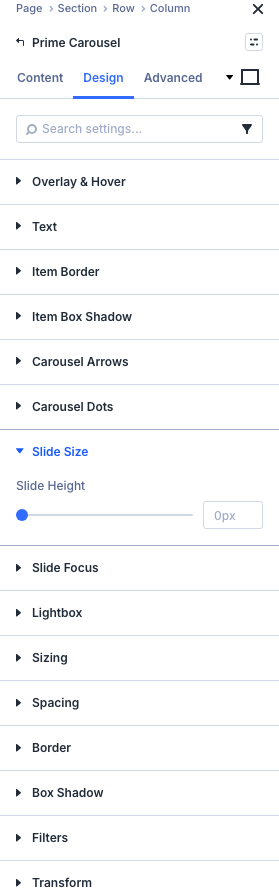
CAR-04 — Slide Height's real location, distinct from Slide Focus.
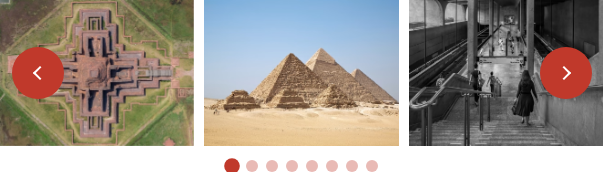
CAR-05 — non-default arrow and dot styling.
Get Prime Gallery Pro
One plugin for Divi 5. Three ways to present a collection.
- Requires Divi 5.9.0+, WordPress 6.4+, PHP 7.4–8.x
- Translation-ready · WCAG 2.1 AA · GPL-2.0-or-later