
On This Page
Prime Gallery
What it is
Prime Gallery is a native Divi 5 module that lays out a set of images in one of four layouts — Grid, Masonry, Justified, or Packery — with an optional lightbox, hover effects, captions, and pagination. It's the general-purpose gallery module in the Prime Gallery Pro family: use it for a portfolio grid, a photo wall, a product showcase, or any page section that shows a set of images together.
When to use it
Reach for Prime Gallery when you want a static or paginated set of images shown all at once (or a page at a time), rather than one image advancing at a time — that's Prime Carousel instead.
Images it uses
Prime Gallery draws from your Media Library and, optionally, Gallery Categories. See Images, categories, and lightbox for how attachments, categories, and the lightbox work — this page only covers what's specific to Prime Gallery.
Adding / selecting images
The Image Source control (Content tab → Images) chooses how the module gets its images:
- Manual Selection — pick specific images from the Media Library using the Images field.
- Dynamic (by Category) — the module pulls every image tagged with one or more Gallery Categories you check in the panel. A Maximum Images to Pull field caps how many it uses. If the site has no Gallery Categories yet, the checklist is replaced by a notice explaining that.
Either way, Image Order controls the sequence: As Selected, Newest First, Oldest First, Random, or Reverse.
To keep a gallery current without editing the module, use Dynamic (by Category), Newest First, and Maximum Images to Pull.
Settings that change the result
Layout (Content tab)
The Gallery Layout control offers four options, and each layout has its own controls that appear only when that layout is selected — Prime Gallery hides what doesn't apply rather than showing every control at once.
- Masonry — a variable-height, Pinterest-style column layout. Uses Columns and Spacing (shared with Grid and Packery).
- Grid — fixed-size cells, uniform row heights. Uses Columns, Spacing, plus two Grid-only controls: Image Aspect Ratio (Original, Square, Landscape, Portrait) and Grid Cell Height (a fixed pixel height for every cell; leave it at its default to size cells from the image instead).
- Justified — rows of varying width, each row filled to the container's edge, all sharing one row height. Uses Target Row Height and Justified Last Row, which decides what happens to the final, possibly-incomplete row: Justify (Full Width), Left (Natural Size), or Hide.
- Packery — a masonry-style layout where individual images can span larger tiles. Uses Columns and Spacing; per-image tile size (Normal, Large 2×2, Wide 2×1, Tall 1×2) is set on the attachment itself — see Images, categories, and lightbox — not in this panel.
Thumbnail Image Size (Thumbnail/Medium/Large/Full) applies across every layout.
Captions (Content tab → Captions & Links)
Caption Placement decides where — and whether — captions show: On Hover (Overlay), Below Image, or Hidden. When it isn't Hidden, Show Title and Show Caption each independently choose whether that piece of text appears.
Open Links In (New Tab / Same Tab) governs any per-image custom link set on an attachment.
Hover effects and overlay (Design tab → Overlay & Hover)
Hover Effect lists: None, Image Zoom, Zoom + Rotate, Overlay Fade, Caption Slide Up, Overlay + Icon, Grayscale → Color, Blur → Focus, Lift.
Effects that paint a color overlay (Overlay Fade, Overlay + Icon, Caption Slide Up, Image Zoom, Zoom + Rotate) expose Overlay Color and an optional Gradient Overlay toggle (which adds a second color and a direction). Overlay + Icon additionally exposes an icon picker, color, and size. Effects that don't paint an overlay (Grayscale → Color, Blur → Focus, Lift, None) show none of these — the controls are hidden, not just inert.
Pagination (Content tab → Pagination & Loading)
Pagination offers: Show All, Load More Button, Infinite Scroll, or Numbered Pages. Choosing anything other than Show All reveals Images Per Page, which sets how many images appear before the next page/batch loads.
Lazy Load Images and Item Entrance Animation (None, Fade In, Scale In, Slide Up) apply regardless of layout or pagination.
Item Border and Box Shadow (Design tab)
Every image tile can carry its own border (style, width, color) and box shadow (position, offset, blur, spread, color, inset/outset), independent of Divi's own module-level border/shadow controls. Border Style defaults to None, which hides the width/color fields; Enable Box Shadow likewise gates the rest of the shadow fields.
Front-end extras
- Lightbox — see Images, categories, and lightbox for the full behavior. Design-tab lightbox styling controls (backdrop color, control color, image fit, and more) only appear while Enable Lightbox is on; otherwise the panel shows a short notice in their place.
- Video hover-preview and play badge — see the shared page.
- Pagination — Load More / Infinite Scroll / Numbered Pages, described above.
Common mistakes
- Expecting Grid-only controls in Masonry, or vice versa. Image Aspect Ratio and Grid Cell Height are Grid-only by design — Masonry's whole point is varied natural heights, so forcing a fixed ratio or height there would work against the layout rather than with it.
- Setting a Packery tile size and not seeing it change anything. Confirm the layout is actually set to Packery — tile size has no effect in any other layout — and that the size was set on the image's attachment, not looked for in this module's own panel.
- See Images, categories, and lightbox for mistakes shared across all three modules.
Figures
GAL-01 — the four layouts, same image set. Captured as four frames rather than one composite.
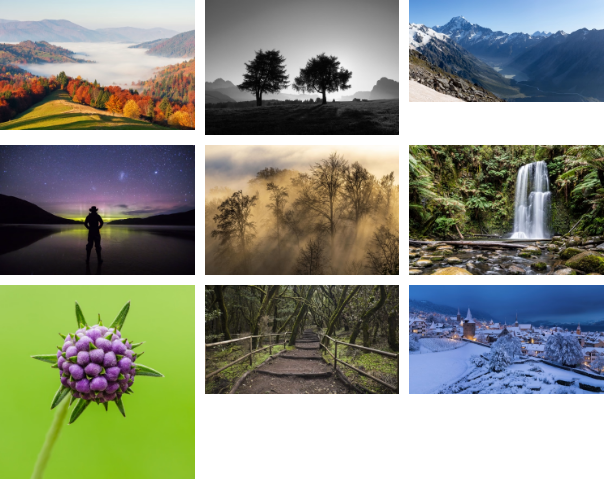
Grid.
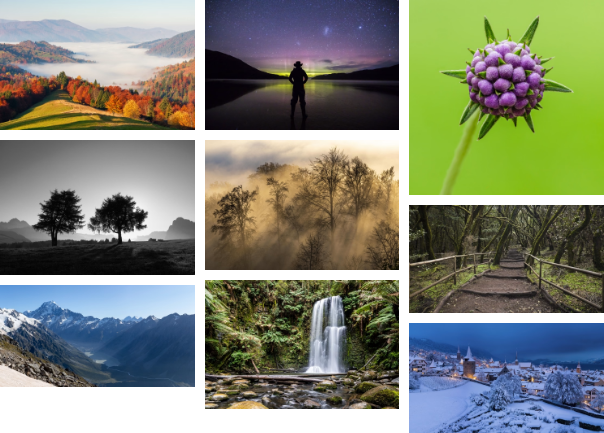
Masonry.

Justified.
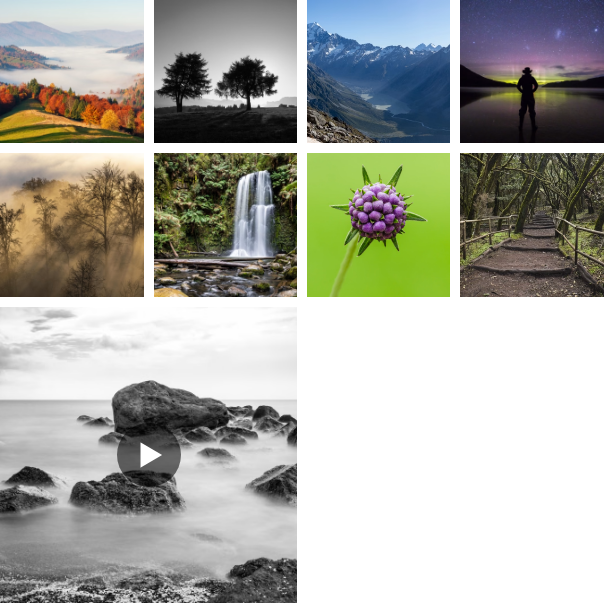
Packery — the last tile is the one with Gallery: Tile Size = Large.
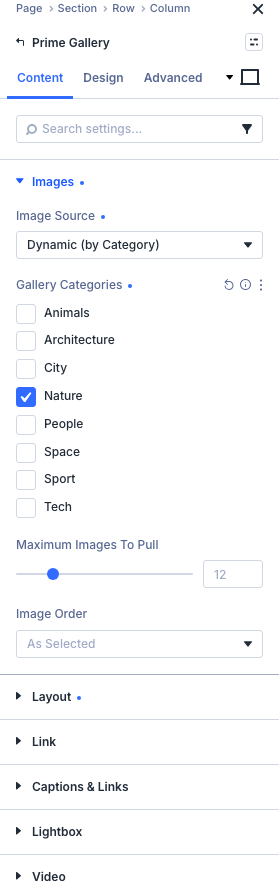
GAL-02 — Content tab, Image Source = Dynamic (by Category), Nature checked.
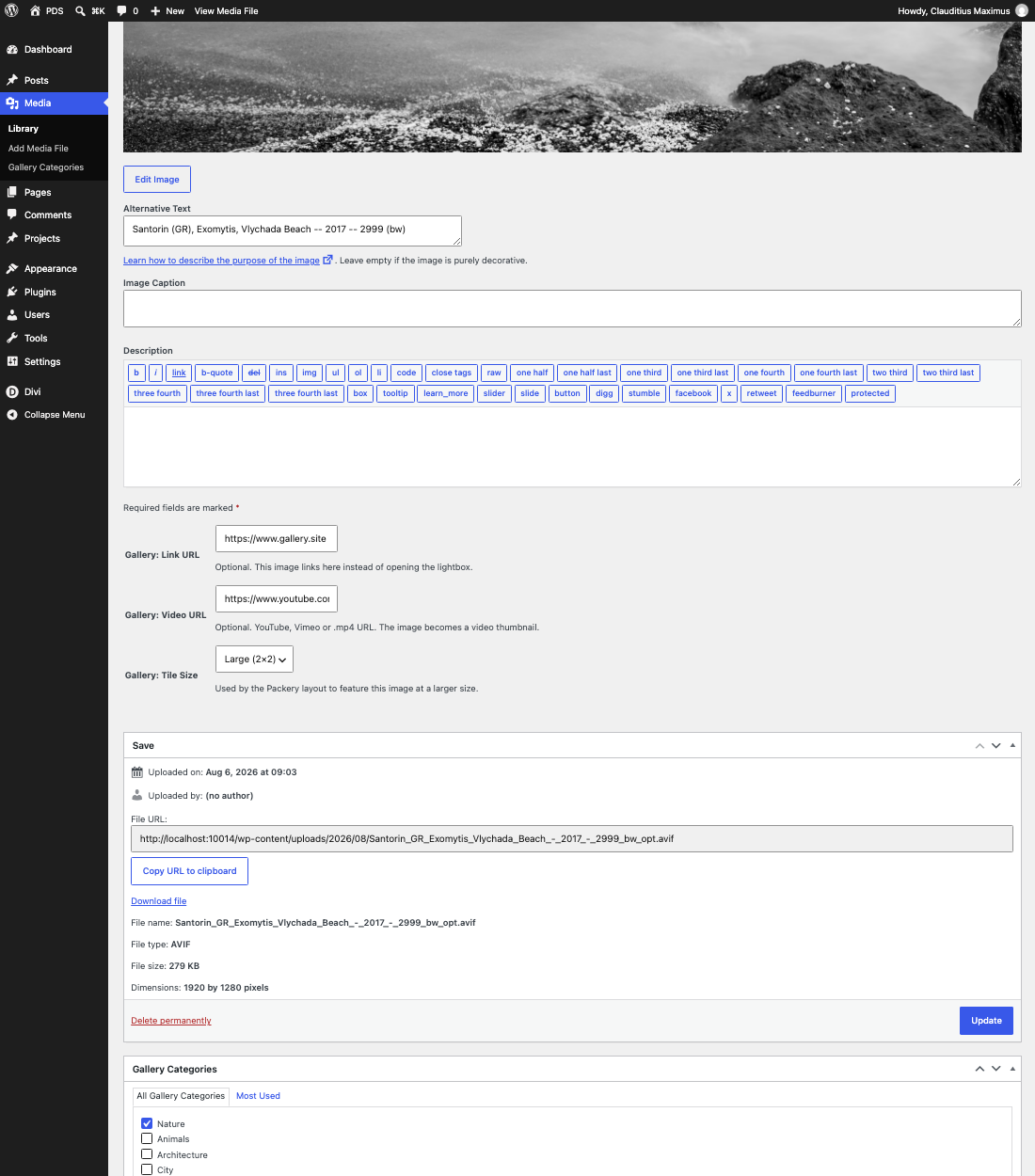
GAL-03 — Gallery: Link URL, Video URL, and Tile Size (Large) on the attachment's Edit Media screen.
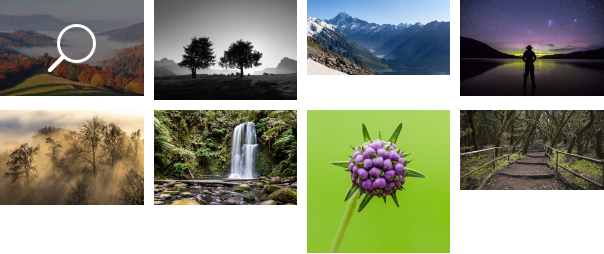
GAL-04 — Overlay + Icon hover effect.
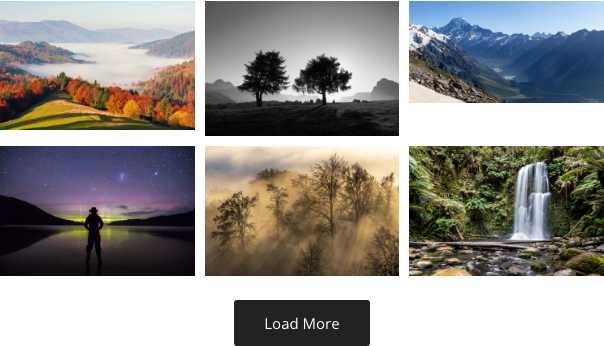
GAL-05 — Pagination = Load More Button, mid-set.
Get Prime Gallery Pro
One plugin for Divi 5. Three ways to present a collection.
- Requires Divi 5.9.0+, WordPress 6.4+, PHP 7.4–8.x
- Translation-ready · WCAG 2.1 AA · GPL-2.0-or-later