
On This Page
Images, categories, and lightbox
Prime Gallery, Prime Carousel, and Prime Portfolio all draw from the same place — your WordPress Media Library — and share the same lightbox. This page covers that shared model once. Each module's own page links back here instead of repeating it.
Where image settings live
A few things are set on the image itself, in the Media Library, rather than inside any one module. Set them once and every module that shows that image picks them up.
Open an image's Edit Media screen (or use Quick Edit from the Media Library's list view) and you'll find three extra fields Prime Gallery adds:
| Field | What it does |
|---|---|
| Gallery: Link URL | Optional. If set, clicking this image opens the URL instead of the lightbox. |
| Gallery: Video URL | Optional. A YouTube, Vimeo, or self-hosted (.mp4/.webm/.ogg) URL. The image becomes a video thumbnail. |
| Gallery: Tile Size | Used only by Prime Gallery's Packery layout — see Prime Gallery. Options: Normal, Large (2×2), Wide (2×1), Tall (1×2). |
Because these live on the attachment, not on any one gallery instance, they apply everywhere that image appears. Edit an image's link once and it's updated in every Prime Gallery, Carousel, and Portfolio that shows it — see Common mistakes below.
Gallery Categories
Gallery Categories is a taxonomy Prime Gallery adds to your Media Library, independent of WordPress's built-in Media Categories (if you use those too). Assign one or more categories to an image the same way you'd assign a category to a post — from the image's Edit Media screen, or via Quick Edit in the Media Library's list view.
A module picks up categories in two ways:
- Dynamic (by Category) image source (Prime Gallery and Prime Portfolio): the module pulls every image tagged with the categories you check in the panel's Gallery Categories control, a checklist of every category that exists on the site.
- Filtering (Prime Portfolio): categories become clickable filter buttons on the front end — see Prime Portfolio's Filtering section.
If no Gallery Categories exist yet on the site, the picker is replaced by a short notice explaining that, rather than showing an empty, confusing list.
Switching a module between manual selection and Gallery Categories does not delete anything you've already selected — your manual picks and your category choices are both remembered independently, so switching back restores what was there.
Lightbox
When a module's Enable Lightbox toggle is on, clicking an image (that has no custom Link URL) opens it in an overlay instead of navigating away. The lightbox is shared across the whole page — only one instance ever exists, however many galleries are on it.
What it plays:
- Images, at full size.
- Self-hosted video (
.mp4,.webm,.ogg/.ogv), played inline with native browser controls. - YouTube, including Shorts URLs, embedded as a player.
- Vimeo, embedded as a player.
Depending on which per-module toggles are on, the lightbox can also show:
- Captions underneath the media.
- A thumbnail strip for jumping between images — only appears once there are 2 or more items in the set, never for a single image.
- A Share button. On a device/browser with the native share sheet, it opens that; otherwise it copies the image's URL to the clipboard.
- A Download button for images (not offered for videos).
Keyboard (arrow keys, Escape) and touch swipe both work for moving through the lightbox and closing it.
Grouping lightboxes across modules
The Shared Lightbox Group field (a short text name you choose) lets two or more module instances on the same page act as one lightbox sequence — opening an image in one module and paging forward can carry you into the next module's images, rather than stopping at the end of the first one's. Leave it blank for independent, per-module lightboxes. When set, the current image is also reflected in the page's URL, so a link to that URL reopens the lightbox at the same image.
Video play badge and hover preview
An image with a Gallery: Video URL set shows a play-icon badge (when the module's Show Play Icon on Videos toggle is on) so visitors can tell it's a video before clicking.
Separately, Hover-to-Play Preview — where supported — plays the video inline, muted by default, the moment a visitor's cursor rests on the tile, without opening the lightbox. A few things limit where this applies:
- Only self-hosted video files can preview inline — YouTube and Vimeo always require opening the lightbox.
- It does nothing on touch devices (no hover to detect); tapping still opens the lightbox normally.
- It's suppressed entirely when the visitor's system has "reduce motion" turned on.
- Mute Hover Preview controls whether the inline preview plays with sound; if an unmuted preview is blocked by the browser, it retries muted automatically rather than not playing at all.
Common mistakes
- Editing a link, video, or tile size on "the wrong copy." These fields live on the attachment in the Media Library, not on any individual module instance. If the same image appears in three galleries and you only want to change the link in one of them, that isn't possible — no module offers a per-instance override of the attachment's Link URL. Use a different image instead, or accept that the link is shared everywhere that image appears.
- Expecting a live feed. Prime Gallery pulls from your own Media Library and Gallery Categories — it does not connect to Instagram, an external feed, or any other outside source.
- Assuming switching image source clears a selection. It doesn't — manual picks and category choices are both kept, independently, so you can switch back and forth while testing without losing either.
Figures
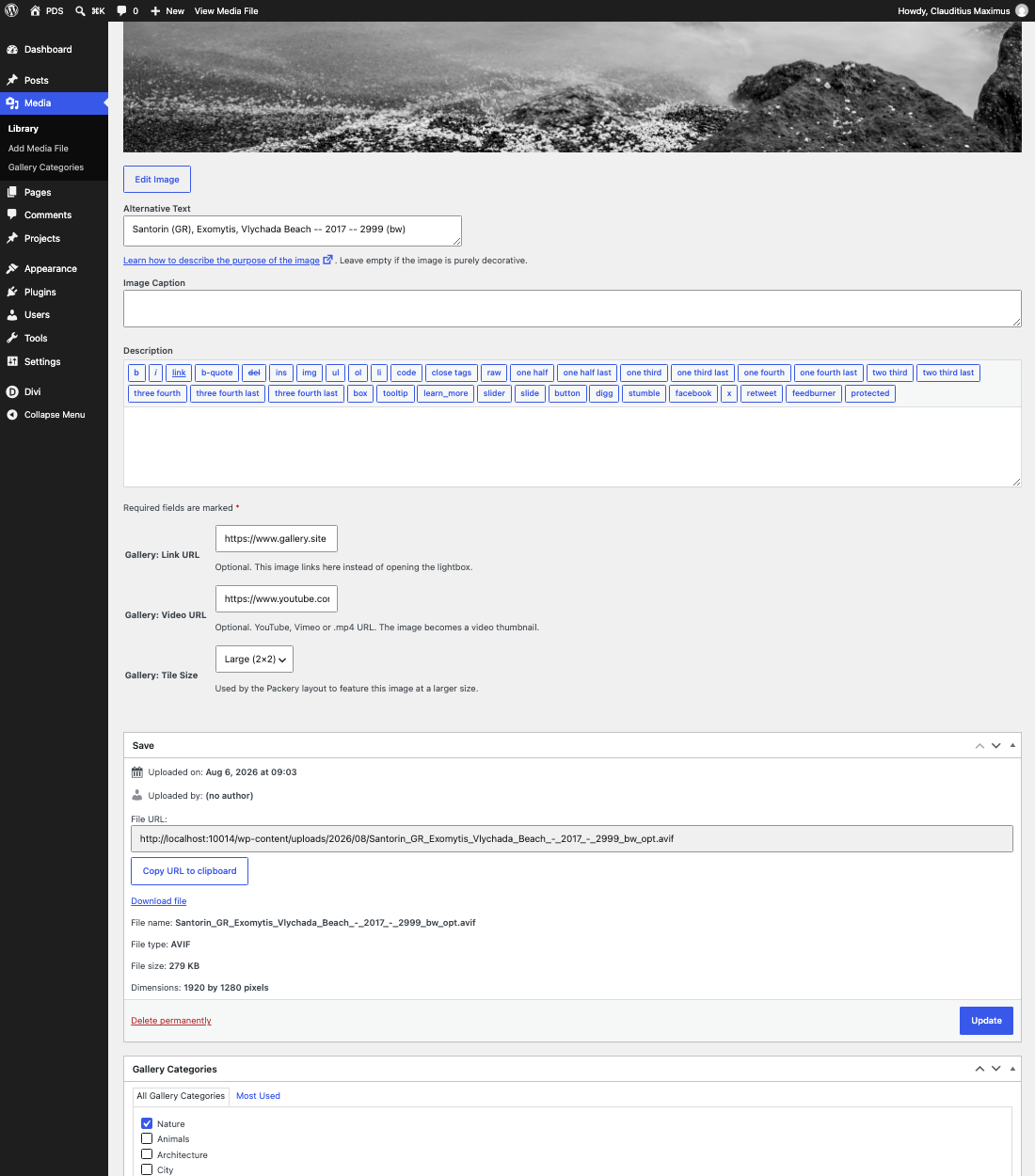
SHR-01 — Gallery Categories, Link URL, Video URL, and Tile Size together on one attachment's Edit Media screen.
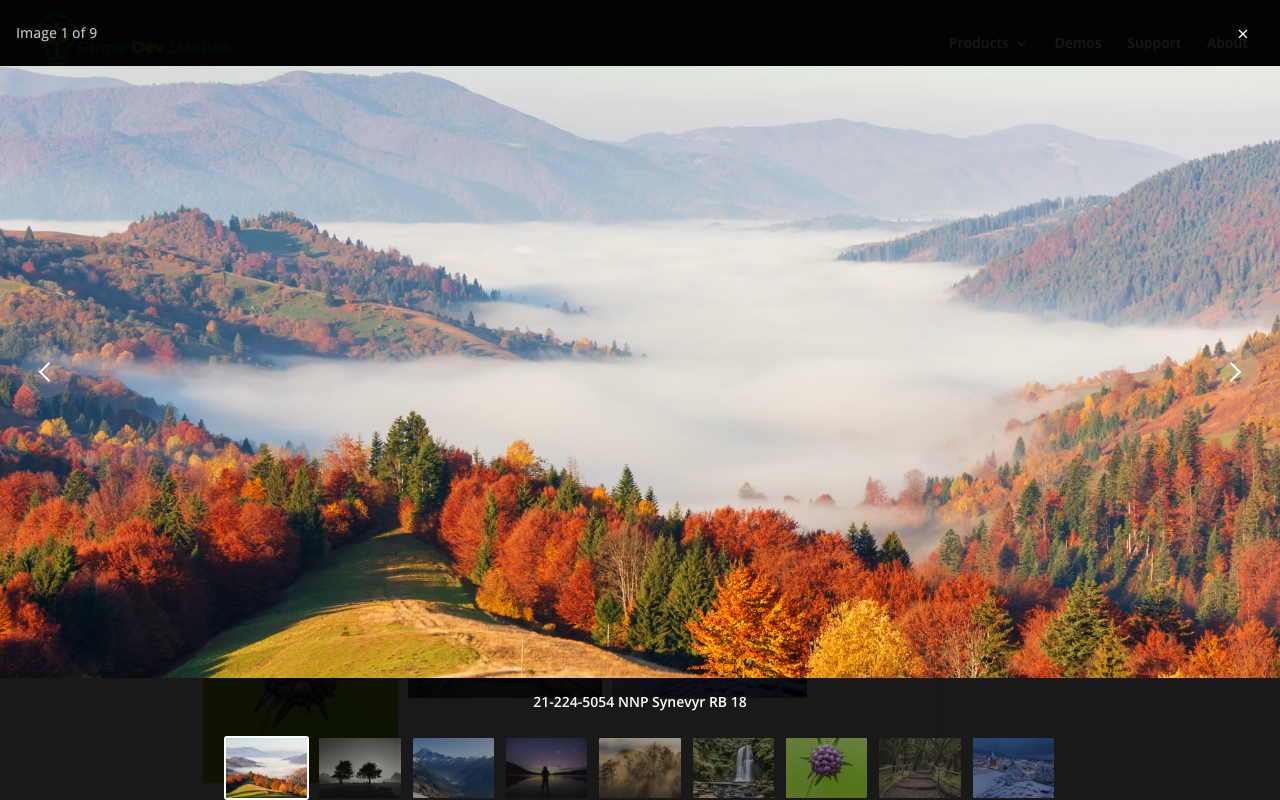
SHR-02 — the thumbnail strip only appears once a set has 2 or more items.

SHR-03 — the play badge shows for any video provider, not just self-hosted.

SHR-04 — the same tile as SHR-03, hovered: a self-hosted .mp4 playing inline, muted. Confirmed actually playing (not a paused poster frame) before capture.
Get Prime Gallery Pro
One plugin for Divi 5. Three ways to present a collection.
- Requires Divi 5.9.0+, WordPress 6.4+, PHP 7.4–8.x
- Translation-ready · WCAG 2.1 AA · GPL-2.0-or-later