
On This Page
Prime Portfolio
What it is
Prime Portfolio is a native Divi 5 module that lays out a set of images in the same four layouts Prime Gallery offers, and adds a visitor-facing category filter bar on top: clicking a category button shows only the images tagged with it, and the active choice is reflected in the page's URL so it can be bookmarked or shared.
When to use it
Reach for Prime Portfolio when visitors should be able to narrow a set of images by category themselves — a portfolio of work grouped by client or discipline, a case-study wall, a product catalog filtered by type. If you just want the images laid out with no visitor-facing filtering, use Prime Gallery instead; if you want one image advancing at a time rather than a set laid out together, that's Prime Carousel.
Images it uses
Prime Portfolio draws from your Media Library and, optionally, Gallery Categories — the same categories that drive its filter bar. See Images, categories, and lightbox for how attachments, categories, and the lightbox work.
Adding / selecting images
Like Prime Gallery, the Image Source control (Content tab → Images) offers Manual Selection (pick images with the Images field) or Dynamic (by Category) (pull every image tagged with the Gallery Categories you check, capped by Maximum Images to Pull). Image Order controls the sequence the same way: As Selected, Newest First, Oldest First, Random, or Reverse. See Prime Gallery's own section for the full behavior — it's identical here.
Whichever images a portfolio shows, the categories that drive its filter bar come from the same Gallery Categories assigned to those images — see Filtering below.
Settings that change the result
Prime Portfolio's Portfolio Layout control offers the same four options as Prime Gallery — Grid, Masonry, Justified, Packery — with the same layout-specific controls appearing under each one (Grid's Image Aspect Ratio and Grid Cell Height; Justified's Target Row Height and Justified Last Row; Packery's per-image tile size, set on the attachment). See Prime Gallery's Layout section for the full breakdown — the control list and behavior match exactly.
Captions (Caption Placement, Show Title, Show Caption) and Hover effects and overlay (Hover Effect and its color/gradient/icon controls) also match Prime Gallery's field-for-field — see Captions and Hover effects and overlay.
Pagination (Pagination Type, Images Per Page) works the same way too — see Pagination. One difference worth knowing: pagination and filtering interact — paging only ever counts and pages through the images the active filter currently shows, not the full set.
Item Border and Item Box Shadow (Design tab) are the same per-tile controls as the other two modules.
Filtering
Show Filter Bar (Content tab → Categories & Filter) turns the bar on or off. It defaults on — a portfolio saved before this control existed still shows its bar after an update, rather than losing it silently.
With the bar on, visitors see an All button (its label editable via "All" Button Label) plus one button per Gallery Category present among the portfolio's images, aligned per Filter Bar Alignment (Left, Center, Right). Clicking a button shows only images tagged with that category; clicking All restores every image. Only one category can be active at a time — there's no multi-select.
If none of the portfolio's images carry any Gallery Category, the bar area shows a note instead of an empty bar:
"No gallery categories yet — add Gallery Categories to your images in the Media Library to enable filtering."
The active filter is written into the page's URL, so a bookmarked or shared link reopens the portfolio already filtered to that category. This works even with Show Filter Bar off — turning the bar off hides the buttons and the empty-category note, but each image still carries its category data, so a link built with the right URL still filters the portfolio on load. That makes it possible to build your own filter links (menu items, buttons elsewhere on the page) that work without ever showing this module's own bar.
Front-end extras
- Lightbox — see Images, categories, and lightbox. As with the other two modules, the Design-tab lightbox styling controls only show while Enable Lightbox is on.
- Video hover-preview and play badge — see the shared page.
- Pagination — see Settings above; it respects the active filter.
Common mistakes
- Expecting the filter bar to multi-select. Choosing a category replaces the previous choice; there's no way to show two categories at once from the bar itself.
- Turning Show Filter Bar off and assuming filtering stops working entirely. It doesn't — deep links (a URL with the right filter token) still work with the bar hidden. Only the visible buttons and the no-categories note disappear.
- Setting Maximum Images to Pull low and not seeing the category you expect. If Dynamic (by Category) hits that cap before reaching an image, that image's category never gets a button — raise the cap or narrow the categories picked.
- See Images, categories, and lightbox for mistakes shared across all three modules.
Figures
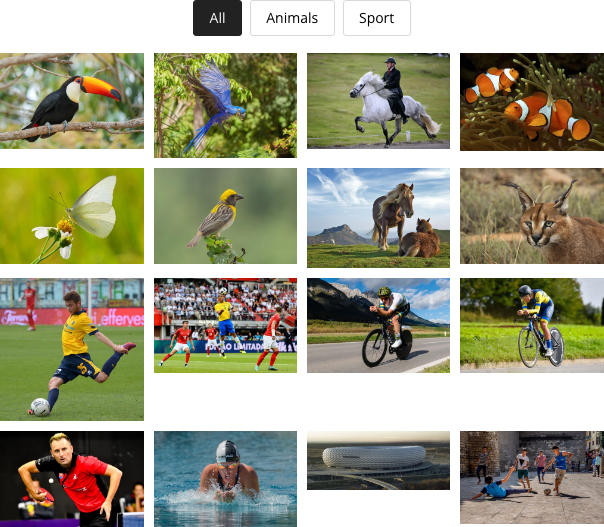
PRT-01 — baseline, before filtering.
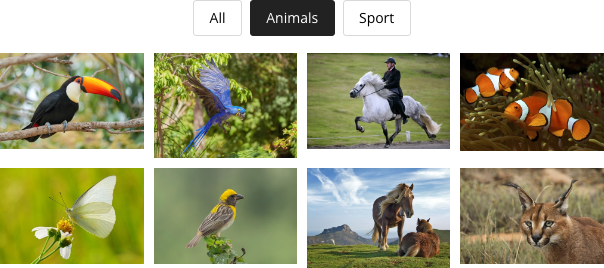
PRT-02 — Animals selected; Sport items drop out.
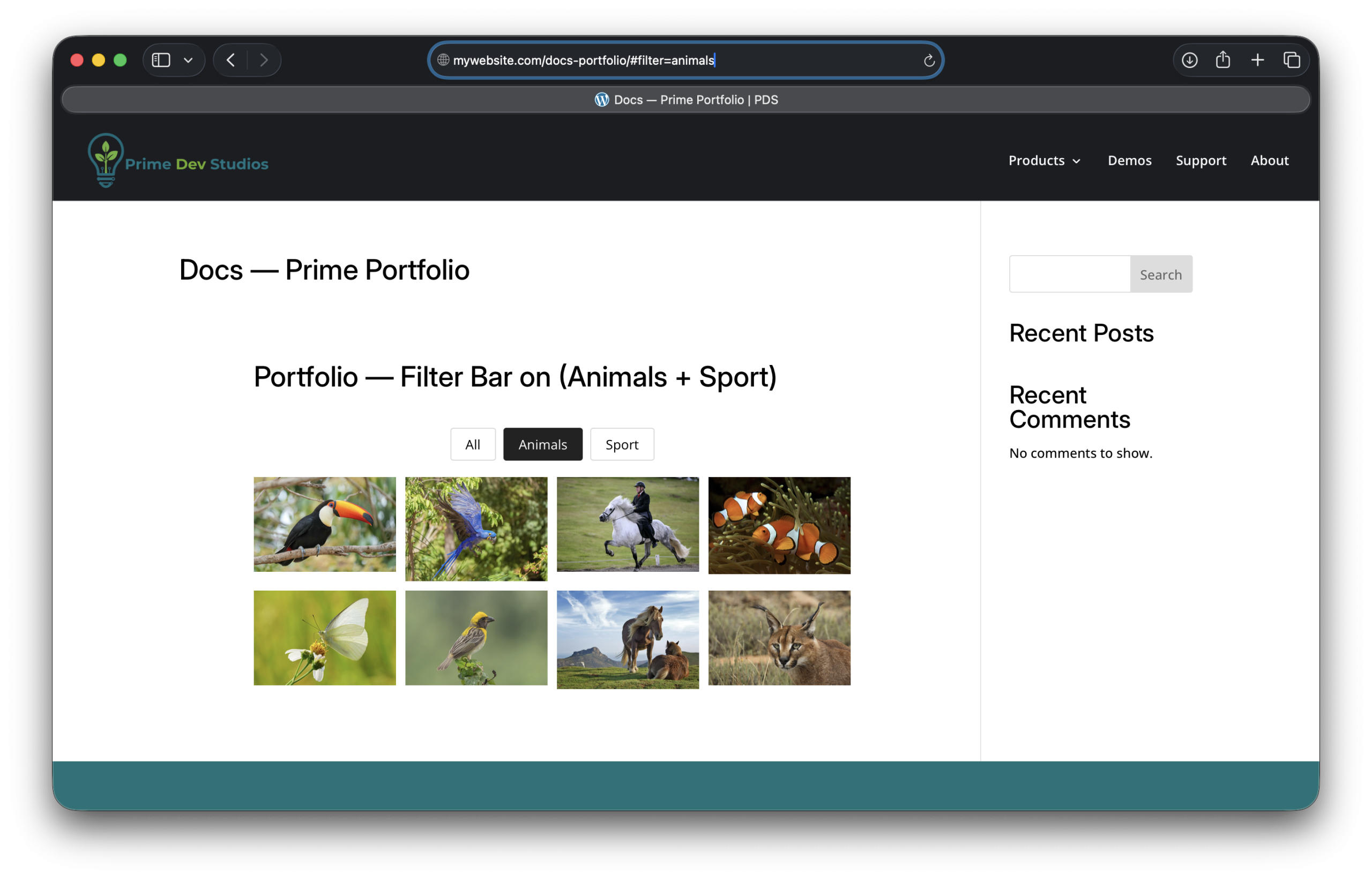
PRT-03 — localhost:10014/docs-portfolio/#filter=animals in the address bar, Animals active, the grid narrowed to match. Hand-captured in a real browser — no automation surface here can render the OS address bar itself.
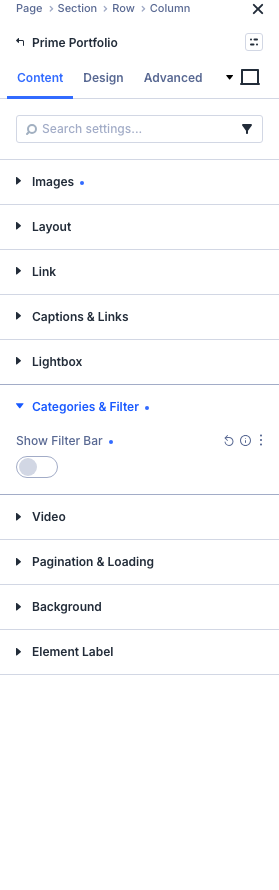
PRT-04 — the toggle and its label.
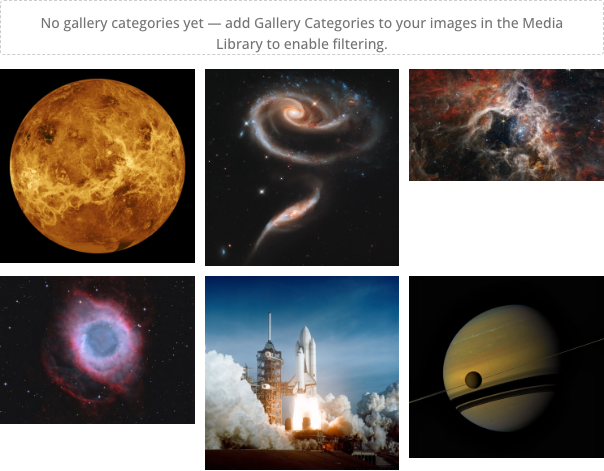
PRT-05 — shown with Show Filter Bar on and no categories among the images.
Get Prime Gallery Pro
One plugin for Divi 5. Three ways to present a collection.
- Requires Divi 5.9.0+, WordPress 6.4+, PHP 7.4–8.x
- Translation-ready · WCAG 2.1 AA · GPL-2.0-or-later